


| Button | Action |
|---|---|
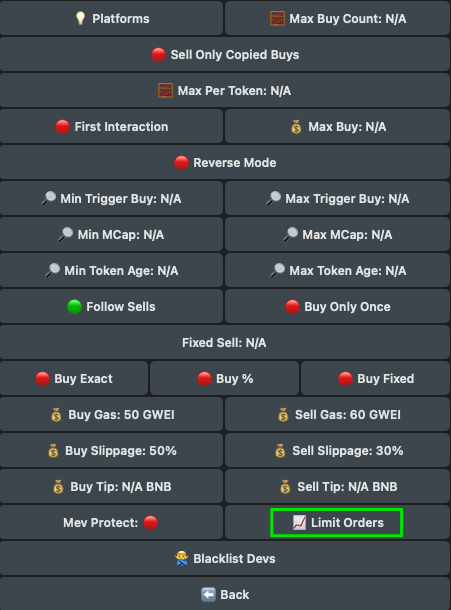
| Max Traded Token | Set the maximum number of coins the bot will purchase according to your current configuration. |
| First Interaction | 🟢: If enabled, it will trigger trades only when the trader you’re copy-trading interacts with the token for the first time 🔴: If disabled, the bot will not consider whether the trader has previously interacted with the token or not. |
| Max Buy | Set the maximum amount you’re willing to buy, regardless of the amount purchased by the target wallet. Max Buy applies to each transaction. |
| Min Trigger Buy | Set the minimum BNB amount purchased by the target wallet required for your transaction to be executed. |
| Max Trigger Buy | Set the maximum BNB amount purchased by the target wallet required for your transaction to be executed. |
| Min MCap | Set the minimum market cap you are willing to buy at. |
| Max MCap | Set the maximum market cap you are willing to buy at. |
| Follow Sells | Choose whether to sell when the target wallet sells. When enabled, the bot will mirror the selling percentage of the trader - for example, if they sell 50% of their position, the bot will also sell 50% of your position |
| Buy Tokens Once | Buy the coin only once, even if the target wallet makes multiple purchases. If you’re using multiple wallets, ensure it’s turned ON for each one. |
| Buy Exact | Buy the same amount as the target wallet. |
| Buy % | Buy a percentage of the amount the target wallet buys. You can set it above 100% to purchase more than the target wallet (eg. 130% buys an additional 30% of the amount purchased by the target wallet). |
| Buy Fixed | Buy a fixed amount, regardless of the target wallet’s amount. |
| Buy Gas | Set the transaction gas (Max Priority Fee) for buying. Max Fee is automatically calculated using the formula: Base Fee + (Priority Fee × 2). |
| Sell Gas | Set the transaction gas (Max Priority Fee) for selling. Max Fee is automatically calculated using the formula: Base Fee + (Priority Fee × 2). |
| Buy Slippage | Set the buy slippage percentage. |
| Sell Slippage | Set the sell slippage percentage. |
| Buy Tip | Set the tip to increase transaction priority and help your trade execute faster. Ethereum: We suggest to set a minimum of 0.001 ETH. |
| Sell Tip | Set the tip to increase transaction priority and help your trade execute faster. Ethereum: We suggest to set a minimum of 0.001 ETH. |
| Mev Protect | When MEV Protect is enabled, your transactions will be processed through BloXroute to prevent getting MEVed. If disabled, transactions will be routed through a custom public node: slightly faster, fully visible. Warning: Do not disable MEV Protect without a specific reason. The speed gain rarely compensates for the slippage loss on a sandwiched trade. |
| Limit Orders | Refer to the dedicated guide. |


Set take profit or stop loss.
• 📈 Take Profit: Use positive values (e.g., +100% for 2x)
• 📉 Stop Loss: Use negative values (e.g., -50% for half)
| | Gas |Set the transaction gas (Max Priority Fee) for selling.
Max Fee is automatically calculated using the formula: Base Fee + (Priority Fee × 2).
Deletes the target order.