> For the complete documentation index, see [llms.txt](https://docs.bloombot.app/llms.txt). Markdown versions of documentation pages are available by appending `.md` to page URLs; this page is available as [Markdown](https://docs.bloombot.app/extension/automation/telegram-auto-buy.md).
# Telegram Auto Buy
{% hint style="info" %}
Telegram Auto Buy runs Auto Buy inside a Telegram Web tab. When a contract address is posted in the channel you are watching, the Extension fires a buy automatically using your Scraper Preset.
{% endhint %}
***
### Requirements
Before starting Telegram Auto Buy, make sure:
* The Bloom Extension is **installed and signed in** (Solana, EVM, or both).
* Your **Scraper Preset** is configured at [manager.bloombot.app/extension/settings](https://manager.bloombot.app/extension/settings) > Scrapers tab. Set the Auto Buy Amount, fees, tip, slippage, and filters.
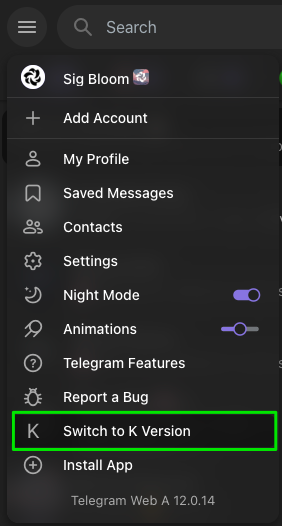
* You are using **Telegram K** (the K version of Telegram Web) in Chrome. Auto Buy does not work on Telegram A.
* Only **one Telegram tab** is open in the current browser window.
#### Switch to Telegram K
Telegram Web ships two versions (A and K). Bloom only supports K. Open `web.telegram.org/k/` directly in Chrome, or change the URL path from `/a/` to `/k/` if you are currently on the A version.
***
### Starting Auto Buy
{% stepper %}
{% step %}
Open Telegram K in Chrome. Keep only one Telegram tab in the current browser window.
{% endstep %}
{% step %}
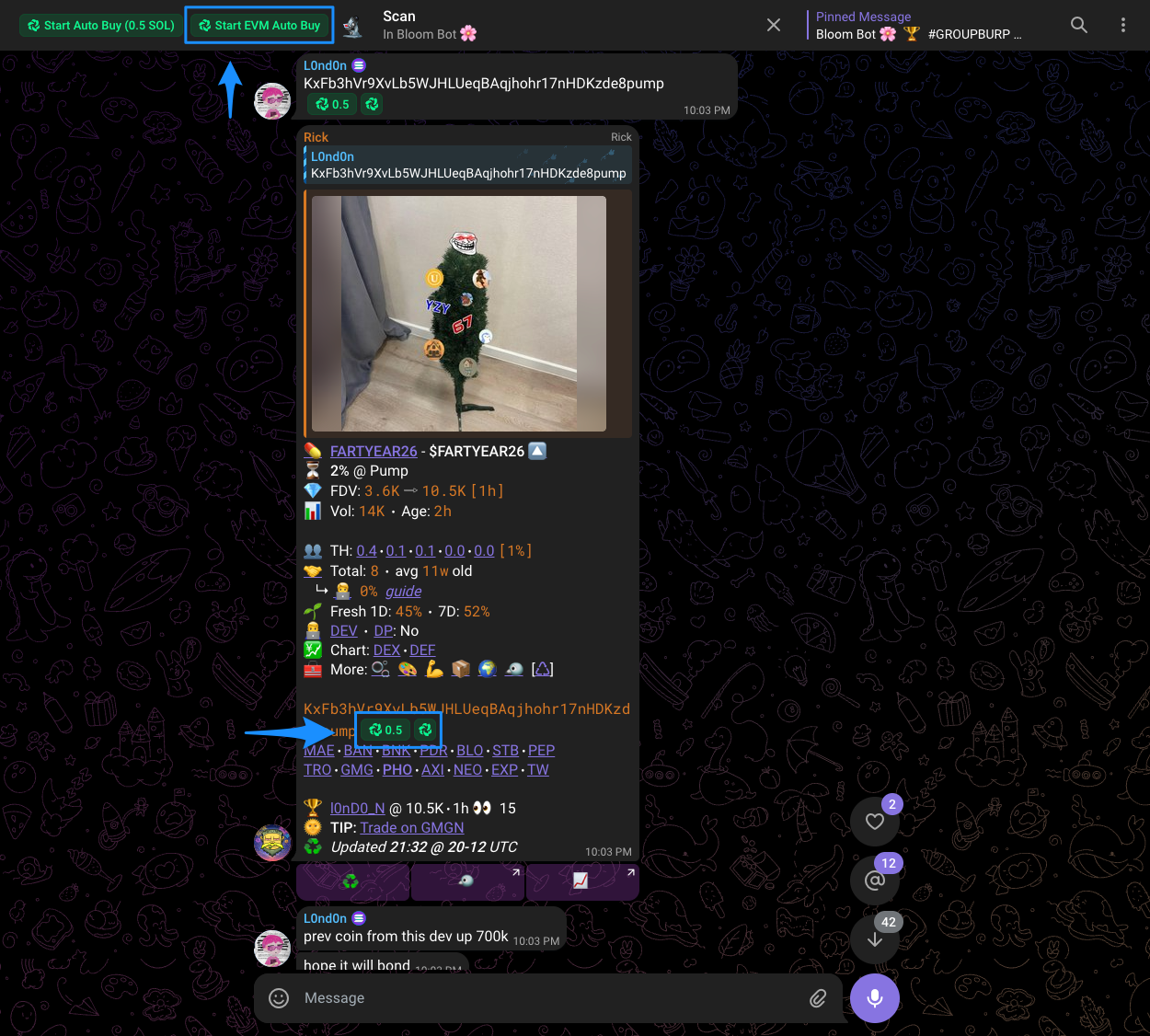
Navigate to the target channel and leave the tab active. The Extension injects a Bloom toolbar into the Telegram interface.
{% endstep %}
{% step %}
Verify your Scraper Preset in the Manager. Double-check the Auto Buy Amount, filters, and fees before going live.
{% endstep %}
{% step %}
Press the Auto Buy button injected into Telegram. Use Start SOL Auto Buy for Solana contracts, Start EVM Auto Buy for EVM contracts. You can run both at the same time if both Extensions are signed in.
Solana
EVM
{% endstep %}
{% endstepper %}
***
### What Happens Next
Once started, the Extension scans every new message in the active Telegram channel for contract addresses.
* **Address detected** → chain identified → Scraper Preset applied → buy fired.
* **Filter fails** (market cap, volume, or "previously bought") → buy skipped, scanning continues.
* **No address in the message** → ignored.
You can keep reading Telegram normally while Auto Buy runs. The Extension only reacts to contract addresses; regular messages and media are unaffected.
To stop Auto Buy, press the same button again (it toggles to Stop Auto Buy).
***
### Running Multiple Telegram Tabs
How do I monitor more than one Telegram channel at the same time?
Open each Telegram tab in a **separate browser window**. One window, one Telegram tab. Every window runs its own Auto Buy instance independently.
The limit is per window, not per browser profile, so you can open as many windows as your machine handles.
---
# Agent Instructions
This documentation is published with GitBook. GitBook is the documentation platform designed so that both humans and AI agents can read, navigate, and reason over technical content effectively. Learn more at gitbook.com.
## Querying This Documentation
If you need additional information that is not directly available in this page, you can query the documentation dynamically by asking a question.
Perform an HTTP GET request on the current page URL with the `ask` query parameter, and the optional `goal` query parameter:
```
GET https://docs.bloombot.app/extension/automation/telegram-auto-buy.md?ask=&goal=
```
`ask` is the immediate question: it should be specific, self-contained, and written in natural language.
`goal` is optional and describes the broader end goal you are ultimately trying to accomplish on behalf of the user. GitBook uses it to tailor the answer towards what is most useful for that goal.
The response will contain a direct answer to the question and relevant excerpts and sources from the documentation.
Use this mechanism when the answer is not explicitly present in the current page, you need clarification or additional context, or you want to retrieve related documentation sections.