> For the complete documentation index, see [llms.txt](https://docs.bloombot.app/llms.txt). Markdown versions of documentation pages are available by appending `.md` to page URLs; this page is available as [Markdown](https://docs.bloombot.app/manager/deploy/evm/deploy.md).
# Deploy
{% hint style="info" %}
Deploy launches a new token from inside the Manager's Twitter Tracker. You pick a wallet, fill the modal, and click Deploy Token. The wallet you select is the creator wallet. It signs the deploy and performs the first buy.
{% endhint %}
***
### Entry points
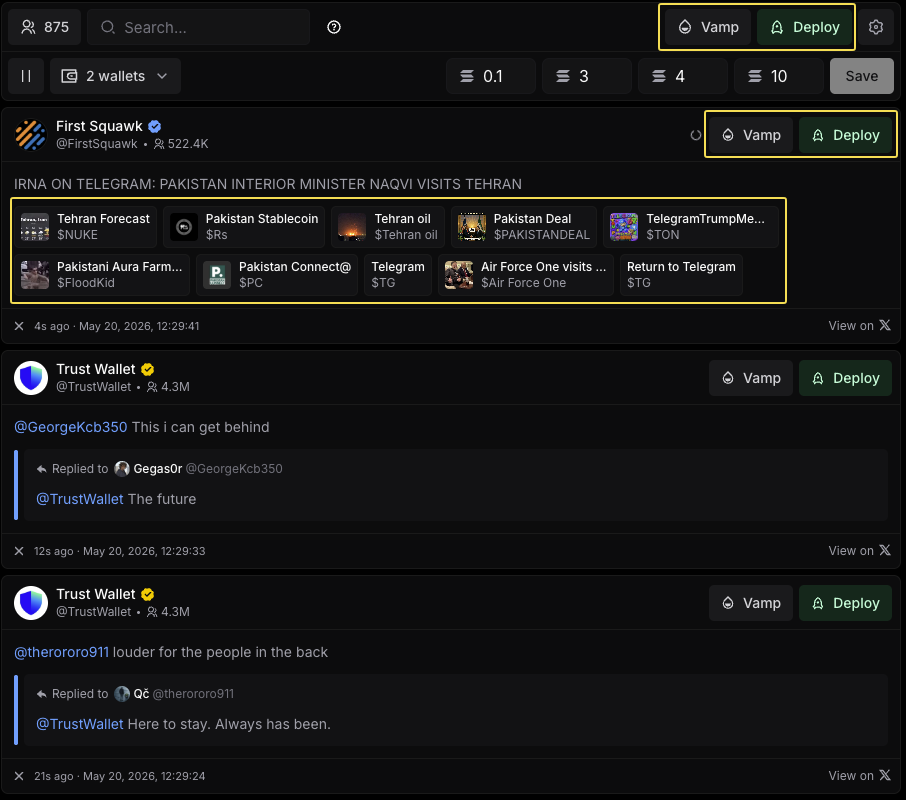
You can start a deploy from three places in the Twitter Tracker.
* Deploy button in the tracker top bar. Opens an empty modal.
* Deploy button on every tweet card. Prefills the modal with the tweet's Post URL and pulls the image from the tweet.
* Enrichment tile under a tweet. Prefills Token Name, Token Symbol, Post URL, and Token Image from the tile. Every field stays editable.
{% hint style="info" %}
Enrichment tiles appear only when Bloom's AI detects a token candidate in the post. See the Settings page for the position control and a fuller definition.
{% endhint %}
***
### The Deploy modal
The modal is one continuous flow from header to footer. Walk it top to bottom. The view is the same on every chain: what changes is the launchpads each chain supports.
{% stepper %}
{% step %}
Pick a creator wallet from the dropdown in the footer. This wallet signs the deploy and pays for the first buy.
{% endstep %}
{% step %}
Set the Token Name and the Token Symbol.
{% endstep %}
{% step %}
Confirm or paste the Post URL.
{% endstep %}
{% step %}
Choose a Token Image source: From Tweet, Library, or AI Generated.
{% endstep %}
{% step %}
Pick one or more launchpads. Each launchpad gear opens its own settings.
{% endstep %}
{% step %}
Configure Features. Apply or create a Bundle preset, and split the supply across wallets with Transfer if you want to.
{% endstep %}
{% step %}
Set the creator buy amount in the footer.
{% endstep %}
{% step %}
Click Deploy Token.
{% endstep %}
{% endstepper %}
The rest of this page expands each step, starting at the top of the modal.
#### From Tweet
Directly Deploy from a tweet by clicking or highlighting the text.
{% embed url="" %}
***
### Modal header icons
{% tabs %}
{% tab title="Save preset" %}
The floppy disk icon saves the current modal configuration as a preset.
{% hint style="info" %}
A preset is a saved bundle of deploy settings. It captures launchpads, Bundle mode, Bundle Buys, Token Distribution, and the rest of the modal state so you can reload it later without reconfiguring.
{% endhint %}
{% endtab %}
{% tab title="Load preset" %}
Saved presets appear as chips at the top of the modal. Click one to load it: every field the preset covers fills in at once.
{% endtab %}
{% tab title="Advanced settings" %}
The gear icon opens Form Settings, where Website and Description are toggled as additional fields in the modal body.
{% endtab %}
{% tab title="Wallet selector" %}
The dropdown in the footer selects the creator wallet. The wallet you pick here signs the deploy transaction and performs the first buy at the amount you set next to it.
{% endtab %}
{% endtabs %}
***
### Modal fields
The body of the modal holds the metadata for your token.
| Field | Description |
| ---------------- | ------------------------------------------------------------------------ |
| **Token Name** | Up to 32 characters. |
| **Token Symbol** | Up to 10 characters. |
| **Post** | URL of the source tweet. Empty when you open the modal from the top bar. |
| **Website** | Optional. Appears after you toggle Advanced settings in the header. |
| **Description** | Optional. Appears after you toggle Advanced settings in the header. |
With Website and Description enabled, the modal looks like this.
***
### Token Image
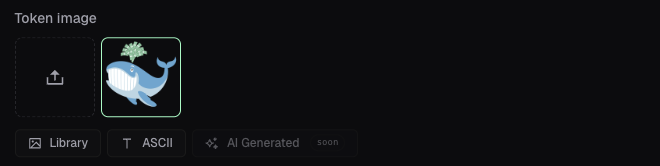
Pick where the image comes from. The four modes are mutually exclusive.
{% tabs %}
{% tab title="From Tweet" %}
Bloom's AI pulls images from the source tweet. The strip below the tabs shows the candidates. Empty when the deploy was not started from a tweet.
{% endtab %}
{% tab title="Library" %}
The set of images you have uploaded from your device. Click the upload tile to add a new one.
{% endtab %}
{% tab title="ASCII" %}
Builds the token image as ASCII art.
{% endtab %}
{% tab title="AI Generated" %}
Bloom generates a token image with AI using parameters consistent with the tweet, the coin, and existing launches on the chain.
{% endtab %}
{% endtabs %}
***
### Image editor (Studio)
Every image carries a pencil icon in the top-right corner. Click it to open Studio.
Inside Studio you can:
* Keep the image as it is or replace it.
* Crop the image.
* Apply a flat or a gradient color background.
* Apply templates such as bars or black and white.
* Add an emoji.
* Add custom text with selectable color and font.
Click Save to persist the change.
***
### Launchpads
Each launchpad has a checkbox. Toggle it to include or exclude the launchpad. Your token deploys to every launchpad that is active, in parallel, with the same Bundle preset applied to each.
The row depends on the chain you are deploying on.
{% tabs %}
{% tab title="Robinhood" %}
Flap, Bags, Pons V2, Pools.trade.
{% endtab %}
{% endtabs %}
Flap and Bags carry a gear that opens their own settings. Pons V2, Pools.trade and four.meme have no settings panel: they deploy with the modal configuration as it is.
{% tabs %}
{% tab title="Flap" %}
{% hint style="warning" %}
Flap charges a trading tax that traders can see. It has to be non-zero: a tax-free launch is rejected on migration.
{% endhint %}
| Field | Description |
| --------------------------------- | ---------------------------------------------------------------------------------------------------------------------- |
| **Quote token** | The token your launch is paired with. |
| **Buy tax** | Tax applied to buys. Pick 1%, 3% or 5%, or type your own value in bps. |
| **Sell tax** | Tax applied to sells. Same three presets and the same custom field in bps. |
| **Tax allocation** | How the tax collected is split across Creator funds, Burn, Dividend and Liquidity. The four values have to total 100%. |
| **All to Creator** | Sends 100% of the allocation to Creator funds and leaves the other three at 0. |
| **Split Evenly** | Divides the allocation evenly across the four destinations. |
| **% +100%** | Fills the remaining gap so the four values total exactly 100%. |
| **Minimum balance for dividends** | The balance a holder needs before they qualify for the dividend share of the tax. |
Click Apply to save the settings.
{% endtab %}
{% tab title="Bags" %}
The panel sets how the trading fees of the launch are shared.
| Field | Description |
| ------------------- | ---------------------------------------------------------------------------- |
| **Creator (You)** | Your share of the fees. |
| **Fee Claimers** | Up to 100 additional claimers. Each row takes an address and its percentage. |
| **Add Fee Claimer** | Adds a claimer row. |
| **All to Creator** | Sets Creator to 100% and every claimer to 0%. |
| **Split Evenly** | Divides 100% evenly across Creator and all claimer rows. |
| **% +100%** | Fills the remaining gap so the rows total exactly 100%. |
The Total row has to reach 100%. Click Apply to save the settings.
{% endtab %}
{% endtabs %}
***
### Features
Three buttons sit under the launchpad row. Bundle and Transfer are live. Multi-deploy is marked soon.
{% tabs %}
{% tab title="Bundle" %}
Bundle opens the preset picker under the Features row. Pick a saved preset to apply it, or click New preset to build one. Each saved preset shows its mode, how many buys it carries and the total amount.
A bundle preset has two modes. Pick one when you create the preset.
**Non-Packed**
Each buy lands as its own transaction. They all land together at deploy, before any other user.
**Sniper**
No bundle and no cap on wallets. Other users can buy before your snipe lands, in exchange for a supply distribution that looks organic.
{% hint style="info" %}
On BSC the bundle buys are routed through BloXroute. On Robinhood they are sent direct.
{% endhint %}
| Field | Description |
| --------------- | --------------------------------------------------------------------------------------------- |
| **Preset Name** | Name of the preset. It is the label you pick from in the Features row. |
| **Mode** | Non-Packed or Sniper. |
| **Buys** | The wallets that buy at deploy and the amount each one spends. Add buy adds a row. |
| **Slippage** | Maximum price difference allowed on the bundle buys, in bps. |
| **Save preset** | Saves the preset. It then appears in the Features row and in Settings, under Bundle presets. |
| {% endtab %} | |
{% tab title="Transfer" %}
Distribute deployed tokens from your creator wallet to others.
Each Token Distributions row picks a wallet and its share of the distributed supply. Drag the slider to set the share, or use the lock icon to freeze a row while you change the others. Add Distribution adds a row, the X removes one. Click Apply to save the split.
{% endtab %}
{% endtabs %}
***
### Set the buy amount and deploy
The footer is the last step.
Pick the creator wallet from the dropdown, then the creator buy amount from the four preset chips, or type your own in the field next to them. The four chips are the Creator Buy values you set in Settings. Click Deploy Token.
---
# Agent Instructions
This documentation is published with GitBook. GitBook is the documentation platform designed so that both humans and AI agents can read, navigate, and reason over technical content effectively. Learn more at gitbook.com.
## Querying This Documentation
If you need additional information that is not directly available in this page, you can query the documentation dynamically by asking a question.
Perform an HTTP GET request on the current page URL with the `ask` query parameter, and the optional `goal` query parameter:
```
GET https://docs.bloombot.app/manager/deploy/evm/deploy.md?ask=&goal=
```
`ask` is the immediate question: it should be specific, self-contained, and written in natural language.
`goal` is optional and describes the broader end goal you are ultimately trying to accomplish on behalf of the user. GitBook uses it to tailor the answer towards what is most useful for that goal.
The response will contain a direct answer to the question and relevant excerpts and sources from the documentation.
Use this mechanism when the answer is not explicitly present in the current page, you need clarification or additional context, or you want to retrieve related documentation sections.