> For the complete documentation index, see [llms.txt](https://docs.bloombot.app/llms.txt). Markdown versions of documentation pages are available by appending `.md` to page URLs; this page is available as [Markdown](https://docs.bloombot.app/solana/solana-bot/settings/presets/twitter-presets.md).
# Twitter Presets
{% hint style="info" %}
Social Presets allow you to set the default configurations used when running a social task.
{% endhint %}
***
{% stepper %}
{% step %}
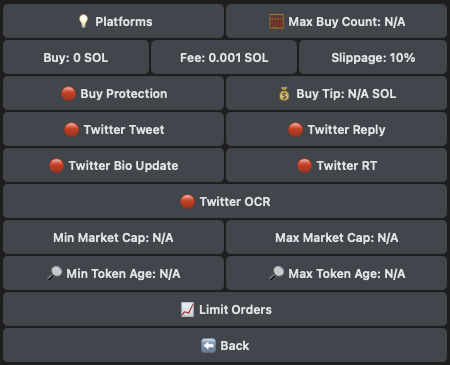
Tap 🐤 Twitter Presets from the Presets menu.
| Button | Action |
| ----------------- | --------------------------------------------------------------------------------------------------------------------------------------------------------------------------------------------------------------------------------------------------------------------------------------------------------------------------------------------------------------------- |
| Platforms | Choose the platforms to activate this task on. After selection, the task will be enabled on all chosen platforms. |
| Max Buy Count |
Specify how many of the target account’s posted contracts you want the bot to purchase.
e.g. • If you enter 1, Bloom will only buy the first contract posted. • If you enter 2, Bloom will buy both the first and the second contracts posted.
If you change target account, the parameter won't reset.
|
| Buy | Choose the SOL amount to buy. |
| Fee | Set the transaction fee for buying. |
| Slippage | Set the buy slippage percentage. |
| Buy Tip | Set the target buy tip fee to prioritize the inclusion of your transaction in the next block. |
| Social Post |
🟢: When enabled, Bloom automatically buys posted contracts according to your settings. (Including quoted reposts where the contract is taken from the quoted text).
|
| Social Reply | 🟢: When enabled, Bloom automatically buys contracts posted in a post reply according to your settings. |
| Social Bio Update | 🟢: When enabled, Bloom automatically buys contracts posted in bio the moment the bio changes according to your settings. |
| Social Repost | 🟢: When enabled, Bloom automatically buys contracts posted in the original reposted post, following your settings. |
| Social OCR | 🟢: When enabled, Bloom uses OCR to automatically buy contracts from images. |
| Min Market Cap | Set the minimum market cap you are willing to buy at. |
| Max Market Cap | Set the maximum market cap you are willing to buy at. |
| Min Token Age |
• Set the minimum amount of time passed since the token was created. • For Pump.fun migrated coins, the time is calculated from the moment they bonded.
|
| Max Token Age |
• Set the maximum amount of time passed since the token was created. • For Pump.fun migrated coins, the time is calculated from the moment they bonded.
|
| Limit Orders | Refer to the dedicated guide. |
| Active | |
| {% endstep %} | |
| {% endstepper %} | |
***
### Auto Orders
{% hint style="info" %}
Auto orders are limit orders automatically created after you buy a coin. They trigger based on your settings and don’t require you to start them manually once created.
After creation, the task will automatically start post-buy. Make sure to delete it if you don't want it to run.
{% endhint %}
{% stepper %}
{% step %}
Click 📈 Limit Orders.
Choose whether to automatically sell the specified amount if the Dev sells any of their tokens. 🟢: When enabled, Bloom will ignore the set profit/loss percentage and only trigger a sale when the Dev sells.
Time
Sell after a desired timespan.
Enter the expiry time in:
• 1H = 1 hour
• 30M = 30 minutes
• 1D = 1 day
• 60 = 60 seconds
Trailing
A Trailing Stop Loss moves automatically as the token price increases. The Trailing Value (%) represents the distance between the current price and where the stop loss is set. As the token price rises, the stop loss moves up with it, always maintaining that distance. If the price drops enough to hit the trailing level, the order triggers and closes the position automatically.
Profit/Loss %
Set take profit or stop loss. • 📈 Take Profit: Use positive values (e.g., +100% for 2x)
• 📉 Stop Loss: Use negative values (e.g., -50% for half)
Fixed Mcap
Set the target market cap at which you’d like Bloom to sell.
Mcap Variation
Set the market cap increase or decrease threshold at which you’d like Bloom to sell. Bloom will execute the sale only when the market cap change matches your specified value.
Sell at
This button adapts based on your selected selling method (Profit/Loss %, Fixed MCap, MCap Variation), allowing you to set your preferred value accordingly.
Sell Amount
Set the target amount to sell as a percentage.
Slippage
Set the slippage percentage.
Sell Protection
Toggle MEV protection (enabled/disabled) to prevent your transaction from being sandwiched. The fastest processor is automatically used.
High Impact (Expert only)
Enables trades that require higher price impact than usual. Use this if you’re buying large amounts of SOL in low-liquidity pools.
⚠️ Expert users only: using this when it’s not needed can route the sale through suboptimal pools or cause bad slippage.
Tip
Set the buy tip fee to prioritize the inclusion of your transaction in the next block.
Fee
Set the transaction fee for selling.
{% endstep %}
{% endstepper %}
---
# Agent Instructions
This documentation is published with GitBook. GitBook is the documentation platform designed so that both humans and AI agents can read, navigate, and reason over technical content effectively. Learn more at gitbook.com.
## Querying This Documentation
If you need additional information that is not directly available in this page, you can query the documentation by asking a question.
Perform an HTTP GET request on the following URL with the `ask` and `goal` query parameters:
```
GET https://docs.bloombot.app/solana/solana-bot/settings/presets/twitter-presets.md?ask=&goal=
```
`ask` is the immediate question: it should be specific, self-contained, and written in natural language.
`goal` is what the user is ultimately trying to achieve, the reason they need the answer. Sharing it helps GitBook give you a better, more relevant answer. A goal is most helpful when it describes the outcome the user wants rather than restating the question. For example, with `ask=how do I create an API token`, a goal like `automate deployments from our CI pipeline` lets GitBook tailor the answer to that use case.
The response will contain a direct answer to the question and relevant excerpts and sources from the documentation.
Use this mechanism when the answer is not explicitly present in the current page, you need clarification or additional context, or you want to retrieve related documentation sections.